The LMS allows you to track how many times each student accesses specified content within a chosen date range. This can be used to see how often students are accessing a lecture, an assignment, or any other activity within the LMS.
Step 1) Turn on Tracking
In order to gather statistics of how many times a particular item within your course is accessed, you must first turn on the statistics tracking feature for that item:
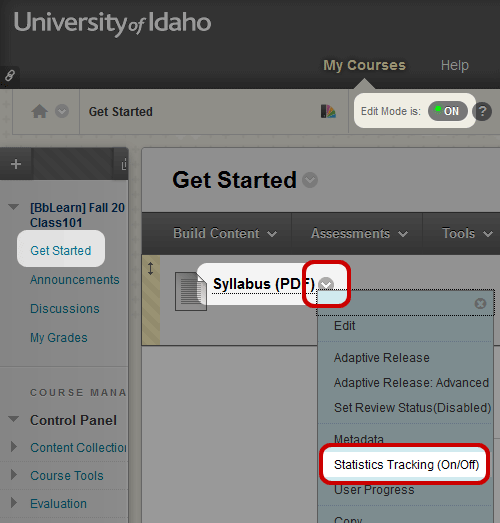
- Turn Edit Mode “ON” in the upper right corner.
- Locate the item or file that you wish to track within your course content area.
- Click the option menu next to the item, and select Statistics Tracking (On/Off).
- Next to Statistics Tracking, select On.
- Press Submit to save your setting.

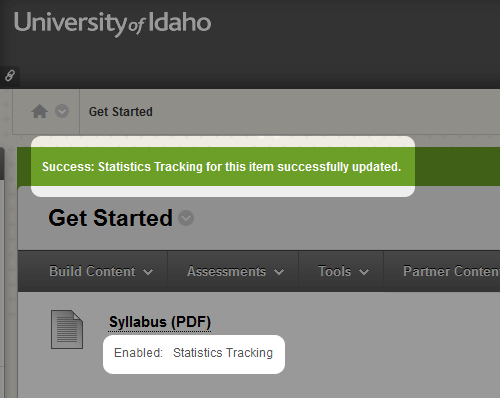
- The LMS will display a Success message indicating that Statistics Tracking has been enabled for that item.
- You will also see a notice below the item indicating statistics tracking is enabled.
Step 2) View Tracking Results
Once you’ve allowed a few days for data to gather, you can view your students activity related to that item.
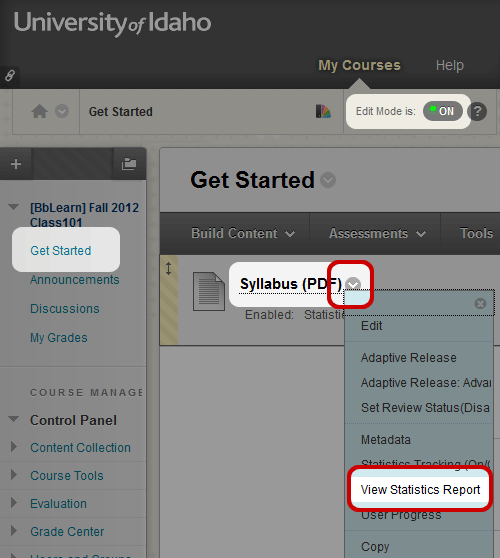
- Click the option menu next to the item, and select View Statistics Report.
- Turn Edit Mode “ON” in the upper right corner.
- Locate the item or file that you wish to view statistics for within your course content area.
- Click the option menu next to Content Usage Statistics, select Run.

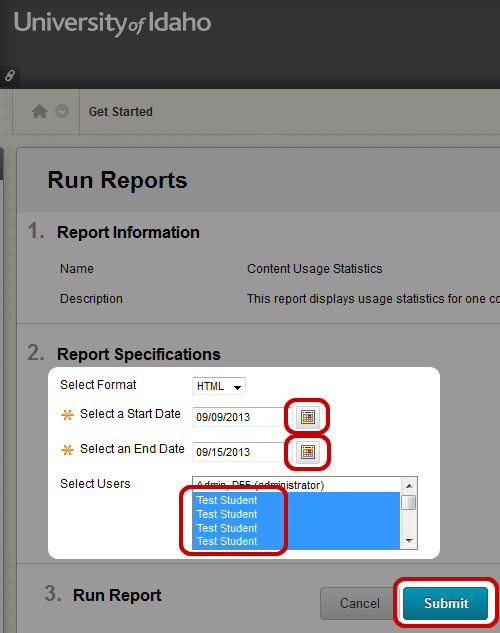
- Select the format in which you would like to view the Report (e.g., PDF, HTML, Excel, Word)
- Set the date range for which you’d like to gather data for.
- Select the students for which you’d like to gather data on (TIP: Use the Shift Key to select multiple students).
- Press Submit to run the report.
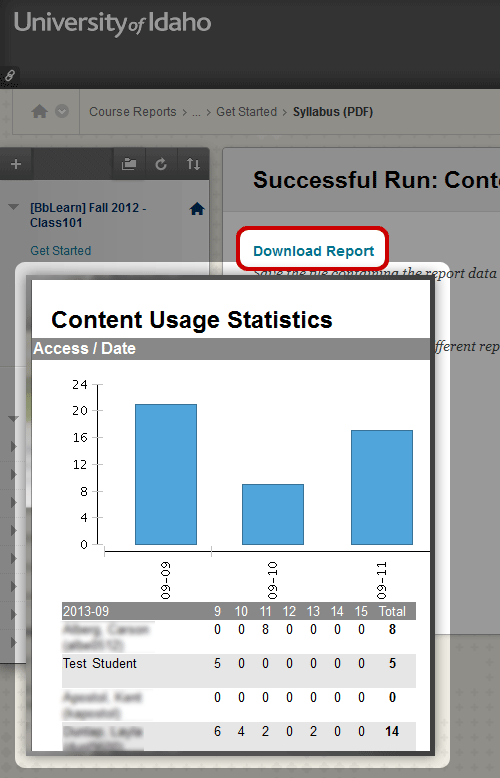
- The LMS will pop-up a new window with the report data. The report data will indicate how many times, on the specified days, each student viewed the tracked content.
- The background window will allow you to Download the Report, or run a new report.
 Jenine Goodman-Grey
You must be logged in to post a comment.