The following steps will help you generate a PDF document using Microsoft Word which will be accessible to screen readers and mobile devices. The short video below covers the same material as the text and screenshot instructions below.
Step 1) Accessibility Checker
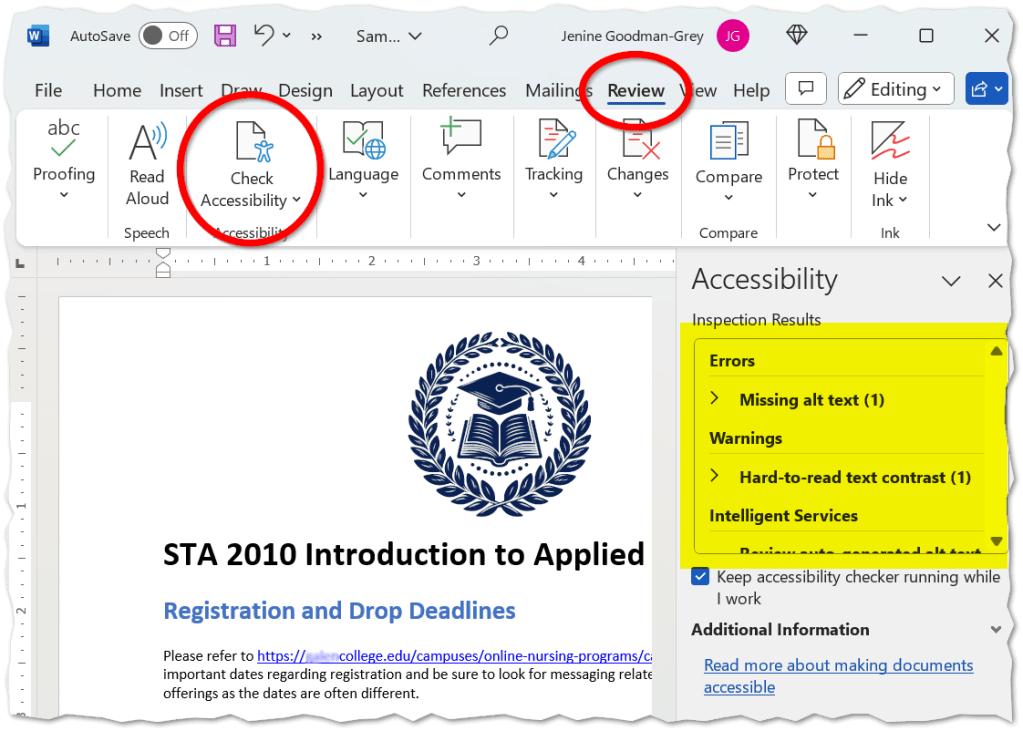
- Within your Microsoft Word document, under the Review tab, click Check Accessibility.
- Review the list of issues in the Accessibility panel on the right.
- These are some of the items that need to be modified to make your document accessible to all users.
Step 2) Image “ALT” Text
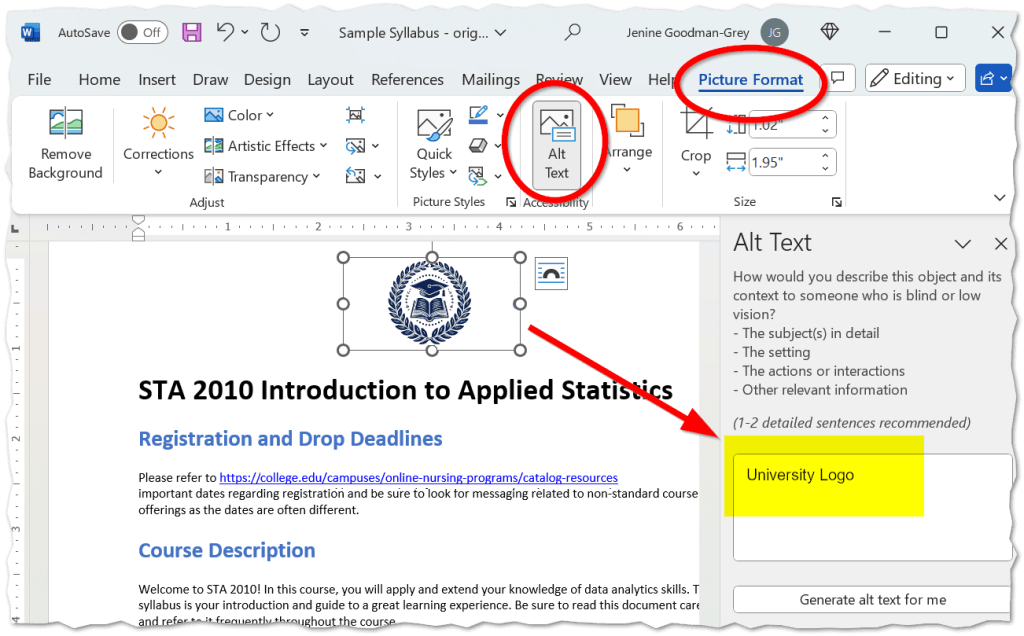
- Select each image, then select the Picture Format tab.
- Click Alt Text.
- Enter descriptive text of the image in the panel on the right for users who may not be able to see the image.
Step 3) Header Navigation
Keyboard users and screen readers use a PDFs Document Outline to navigate the document. Document Outlines can be created using Microsoft Word’s Header Style feature.
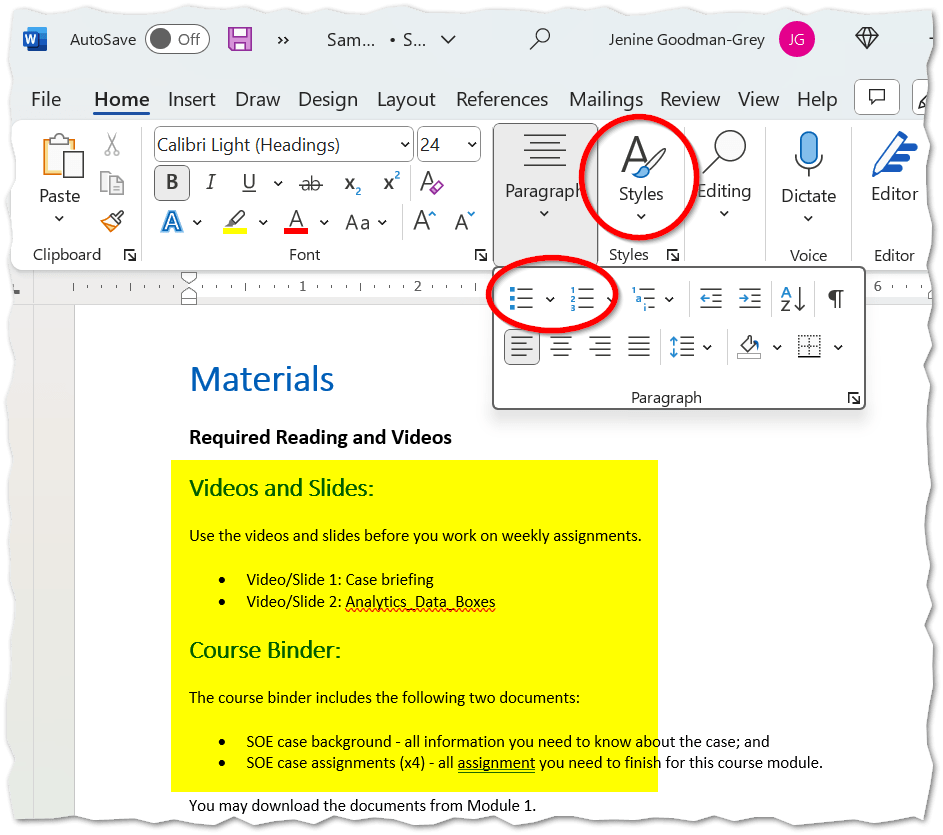
- Under the Home tab, click on each header item that you want represented in the navigation.
- Select your desired Heading under the Styles drop down.

Step 4) Format for Tabbing
Replace paragraphs of text with headers and bulleted lists to improve the tabbing ability throughout your document.
Step 5) Descriptive URLs
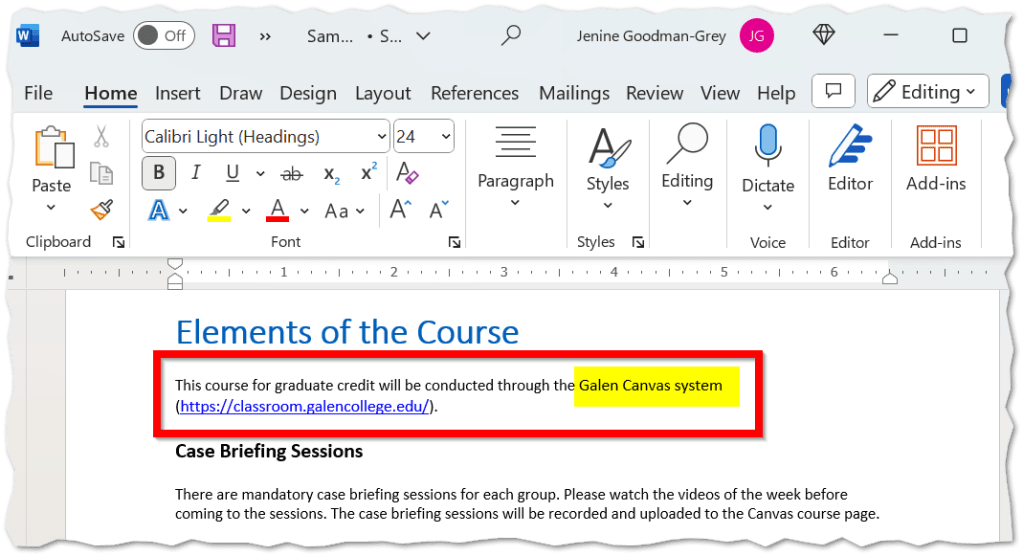
Rather than supplying only a URL link, augment URLs with text that describes the link’s destination.
Step 6) Table Caution
Consider using a bulleted list with headers as an alternative to tables. They take a bit more space, but lists won’t cause horizontal scrolling issues on mobile devices, and can easily be tabbed through by screen reader users.

Step 7) Color Caution
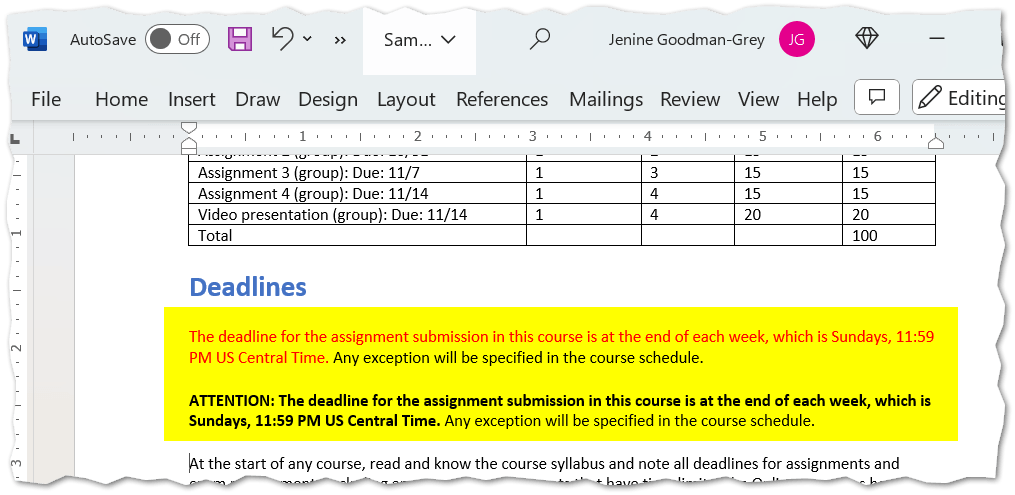
Users with vision challenges may not see information that is conveyed with color. For example, in the screenshot below, the first highlighted line attempts to convey “importance” by making the text red. Instead, use bold text with an “ATTENTION” phrase to convey importance.
 Jenine Goodman-Grey
You must be logged in to post a comment.